How to Install an Expert Advisor (EA) in MT5 in 10 Minutes
By Fernando Funicelli · Founder of Lucky Dogs Trading Systems
Installing a robot (EA) in MetaTrader 5 takes about 10 minutes, and you only do it once. In MT5, a trading robot is called an Expert Advisor, or EA: a program attached to a chart that opens, manages and closes trades on its own, following its rules. This guide shows how to install and use an expert advisor, from the Market to the EA up and running.
The most common stumble comes in the last minute. You install it, drag the EA onto the chart, its name appears in the corner of the screen and... nothing. The icon stays gray, hours go by and no order opens.
It is not the robot's fault. It is a permission that is switched off, and fixing it takes one click once you know where to look.
Three switches make the robot trade: the right account, the permission on the EA and a green Algo Trading button. This guide goes through all three, in the order you will need them.
It works for any EA. In the examples we use our EAs, Collie Gold, Pitbull Gold and Beagle Gold, which trade gold.
What you need before you install
- Your broker's MetaTrader 5. Each broker has its own version, with its servers already set up.
- The account logged in with the master password. With the investor password, the account is view-only, and the EA cannot trade. That is the first switch.
- A hedging account. MT5 has two account modes: hedging, where each trade stays separate, and netting, where everything becomes a single position per asset. Most EAs, ours included, need hedging. If in doubt, ask your broker before you open the account.
- An MQL5.com account, if the EA comes from the MQL5 Market. It keeps your purchases and your activations.
Haven't tested the robot yet? Before you pay, see how to test a trading robot before you buy. And if you are still deciding whether you want a robot at all, start with how to tell if a forex robot works.
How to install an EA bought on the MQL5 Market
You buy on the EA's page on the MQL5 Market, with your MQL5 account (how to buy an EA on the MQL5 Market, step by step). After that, everything happens inside MetaTrader:
- Log in to MT5 with your MQL5 account. Go to Tools → Options → Community and enter your MQL5 login and password.
- Open the Toolbox with Ctrl+T, go to the Market tab, then Purchased. The EA you bought is there: click Install.
- Find the EA in the Navigator (Ctrl+N), under Expert Advisors → Market.
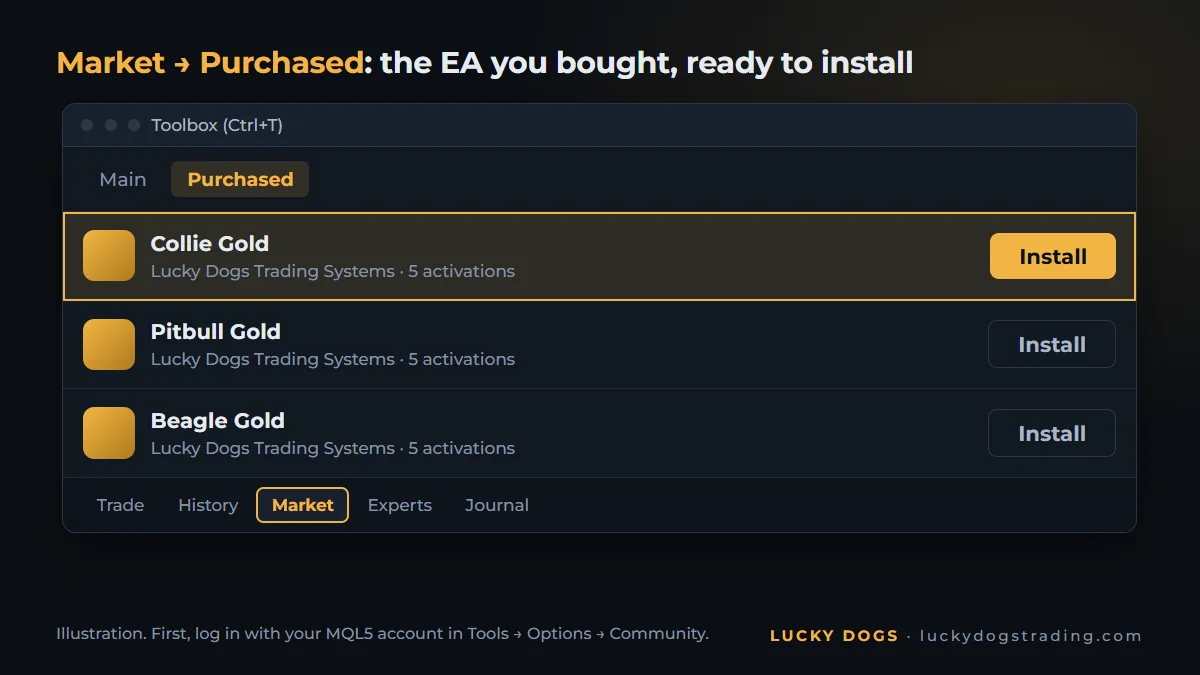
Activations: what uses one and what doesn't
Each purchase comes with a number of activations. Each activation is an install on a different computer or VPS. Reinstalling on the same computer usually does not use an activation; switching computers or reinstalling Windows uses a new one.
Our EAs come with 5 activations and all updates included: enough for your computer, a VPS and a few to spare for a new machine.
How to install an EA from a file (.ex5)
Got the EA as a file, outside the Market? The format MT5 runs is .ex5, the program ready to use. Installing it takes a minute:
- In MT5, go to File → Open Data Folder.
- Open MQL5, then Experts. Copy the .ex5 file there.
- In the Navigator, right-click Expert Advisors and choose Refresh. The EA appears in the list.
If the file ends in .mq5, it is the source code. Open it in MetaEditor, the editor that comes with MT5, and compile it: the .ex5 is created in the same folder.
How to add an expert advisor to the right chart
- Open the chart of the asset the EA trades. For ours, it is gold priced in dollars. In Market Watch (Ctrl+M), find your broker's symbol: XAUUSD, GOLD, XAUUSD+ or another name. Right-click it and choose Chart Window. If gold is not on the list, see how to add XAUUSD to MT5.
- Choose the timeframe only if the manual asks for one. The timeframe is the length of each bar on the chart: M1, M15, H1. Ours work on any of them.
- Drag the EA from the Navigator onto the chart. The settings window opens.
Each chart takes one EA. To run two EAs, open two charts.
How to allow Algo Trading and choose the profile
The EA window has two tabs that matter:
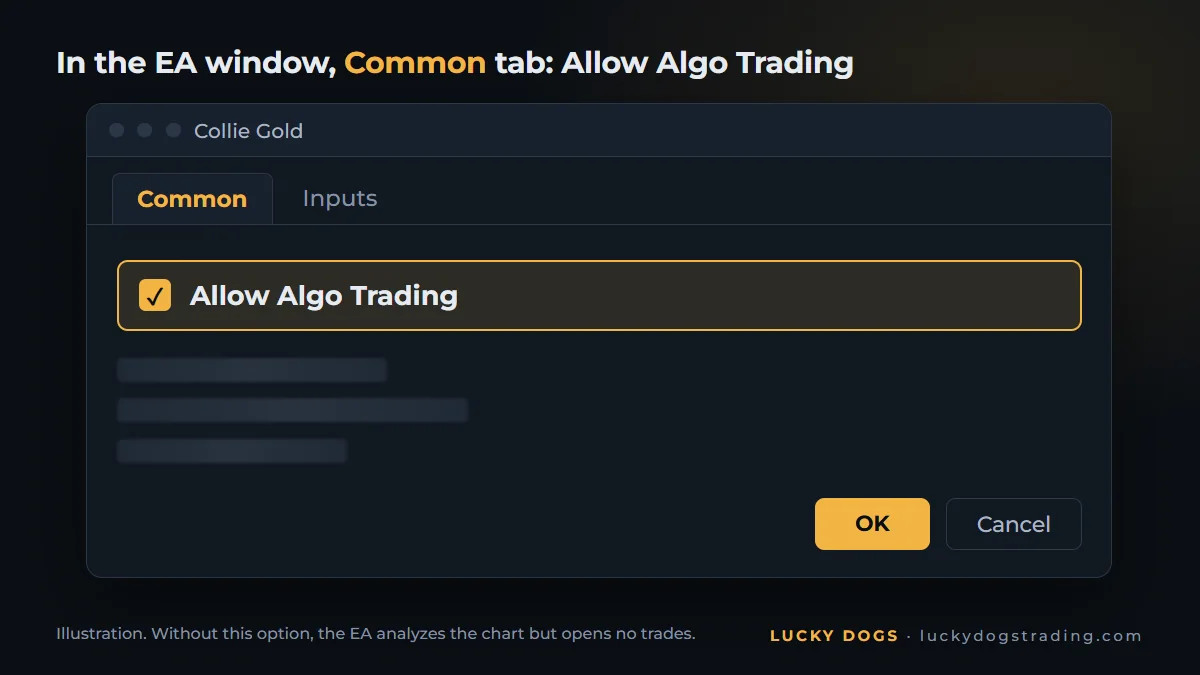
- Common: tick Allow Algo Trading. Without this option, the EA analyzes the chart but opens no trades. That is the second switch.
- Inputs: the EA's settings. On ours, the main setting is the profile, from Conservative to Maximum. Choosing the profile is the entire setup: one setting, and the EA takes care of the rest. Start on Conservative and move up a profile when you want to speed things up.
Click OK.
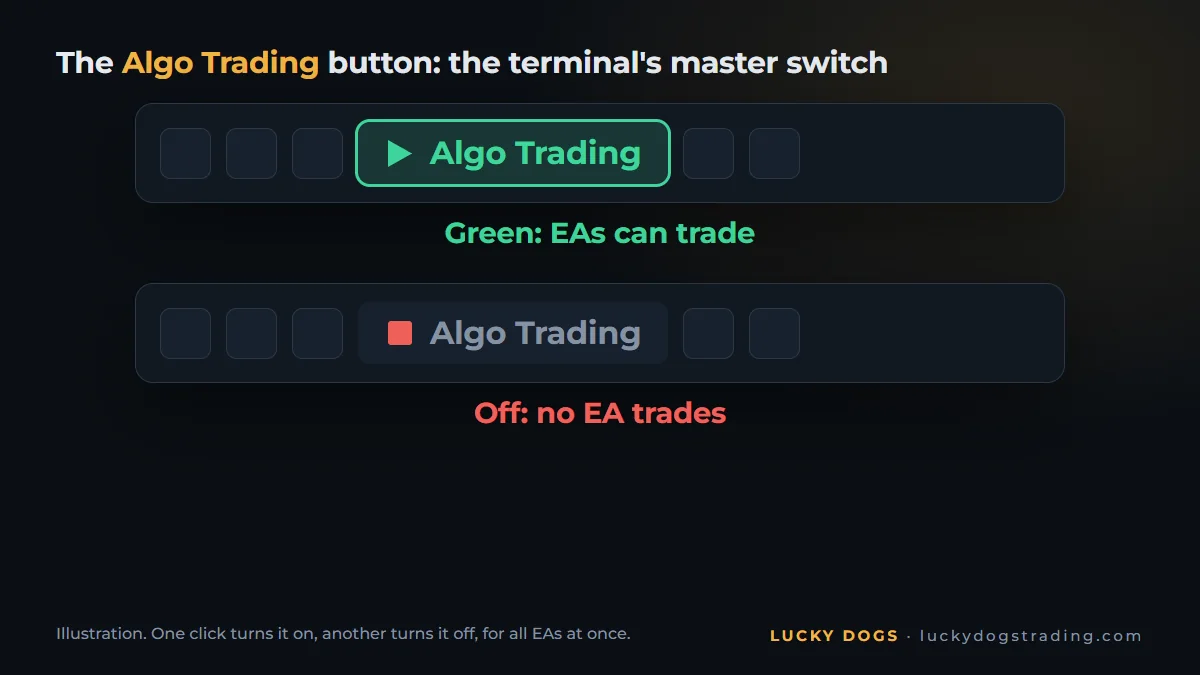
Now the third switch. At the top of MT5 is the Algo Trading button. It has to be green: it is the master switch that lets EAs trade in the terminal. One click turns it on, another turns it off, for all EAs at once.
The official MetaTrader 5 help on Algo Trading covers both permissions in detail.
How to check the EA is running
- In the top-right corner of the chart, the EA's name appears with a hat icon. Blue means it is ready to trade. Gray means a permission is off: go back to the Common tab and the Algo Trading button.
- In the Toolbox, Experts tab, you will find the EA's messages. Ours write the settings they loaded there, and any error.
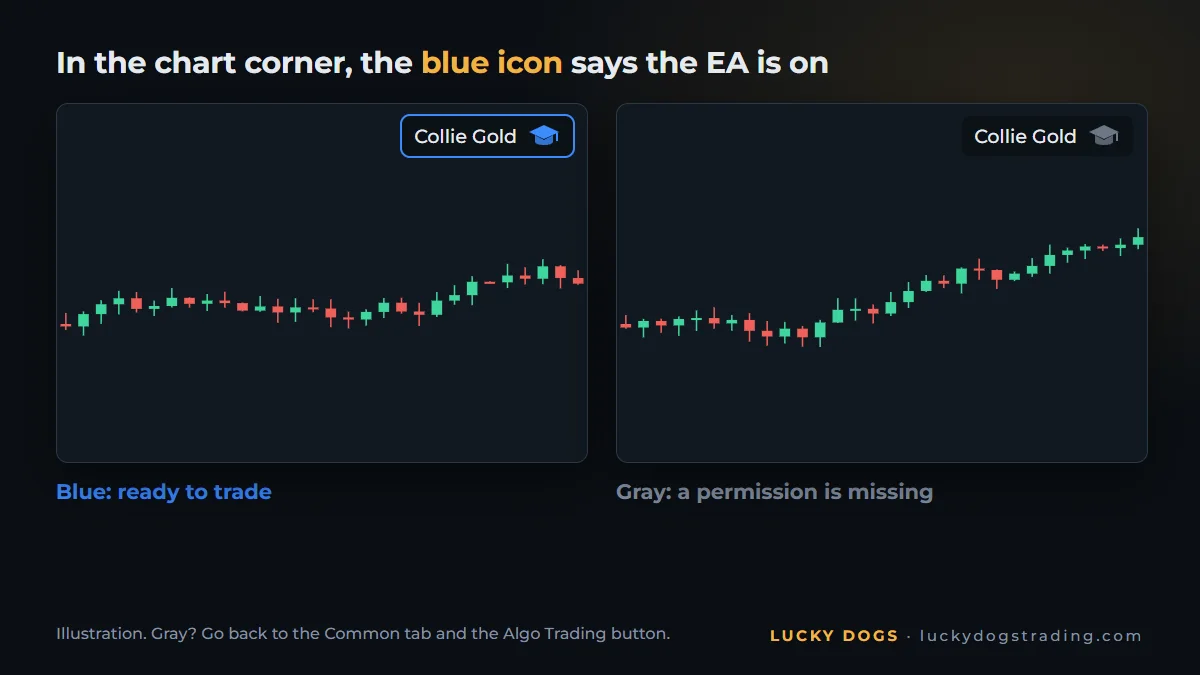
Blue hat and no orders yet? That is normal. A good EA waits for its moment. Pitbull Gold only enters when price confirms the move and makes 14 trades a month on average; Beagle Gold makes 36. Results are measured by the month, not by the hour.
Keep the EA running 24/7
The EA only works while MetaTrader is open. If the computer shuts down, it stops managing trades. What happens to an open trade depends on the EA:
- Pitbull Gold and Beagle Gold: the stop, and on Pitbull the target too, is already on the broker's server, and the trade stays protected. For the EA to manage each trade to the end, MetaTrader has to be on.
- Collie Gold: it closes its baskets at the current price, so MetaTrader stays on all the time.
The solution is a VPS, a cloud computer that stays on day and night:
- MQL5's own VPS: in the Navigator, right-click your account and choose Register a Virtual Server. MT5 copies your charts and EAs over.
- Any Windows VPS: install MT5 on it and repeat the steps in this guide. Pick a server close to your broker, so orders arrive faster.
With the VPS running, you can turn off your computer whenever you like.
The most common errors when installing an EA
| What you see | Why it happens | How to fix it |
|---|---|---|
| The EA icon stays gray | Algo Trading is off in the terminal or in the EA window | Turn the Algo Trading button green and tick "Allow Algo Trading" on the Common tab |
| "Trade is disabled" in the Experts tab | Logged in with the investor password | Log in to the account with the master password |
| The purchased EA does not show in the Navigator | MT5 is not logged in to your MQL5 account | Tools → Options → Community, then Market → Purchased → Install |
| The EA warns that the account is netting | The EA needs a hedging account | Ask your broker for a hedging account |
Frequently asked questions
Can I install an EA on MT5 mobile?
No. The EA runs on MetaTrader 5 on a computer or a VPS. The phone app does not run robots, but it shows every trade they make, on the same account: you can follow along from anywhere.
How do I install an EA in MT5 on a Mac?
MetaTrader 5 has a Mac version, and the steps in this guide are the same. Another option is a Windows VPS, which you access from your Mac and which also keeps the EA running 24/7.
How many activations do I get?
Each EA's seller decides. On ours, there are 5, one per computer or VPS. Reinstalling on the same computer usually does not use an activation; switching computers or reinstalling Windows does. How to plan your activations and the difference between renting and buying are in how to buy an EA on the MQL5 Market.
How do I remove an EA from a chart?
Right-click the EA's icon in the top corner of the chart and choose Remove. Closing the chart also removes the EA. And since each chart takes only one EA, putting another EA on the same chart replaces the previous one.
Do I need to keep my computer on?
MetaTrader needs to stay on for the EA to manage each trade. On Pitbull Gold and Beagle Gold, the stop is already on the broker's server, and the trade stays protected with the computer off. Collie Gold closes its baskets at the current price, so MetaTrader stays on all the time. A VPS solves all three cases.
Once it is on, let the EA work. Ours have a panel right on the chart with the results of their trades. Check it whenever you like.
Still choosing? All three install exactly as in this guide: they recognize gold under any name, detect the broker's time zone on their own and are set up with a single setting, the profile. In the test with real ticks, in 2025, Collie Gold made +586% on the Moderate profile, Pitbull Gold made +425% on Balanced and Beagle Gold made +185% on Moderate. See the three EAs side by side and pick yours.