How to Buy a Forex Robot (EA) on the MQL5 Market in 5 Steps
By Fernando Funicelli · Founder of Lucky Dogs Trading Systems
To buy a robot (EA) on the MQL5 Market, you need an MQL5.com account: on the EA's page, you run the free demo, choose between renting and buying, pay and install it straight into MetaTrader 5. Buying a forex robot there takes a few minutes.
The scares come later, and they're always the same two. You pay, open MT5 and the EA isn't there. Or, months later, you reinstall Windows and find out you used up an activation without even knowing what that was.
Neither one is a defect. Both have the same root: not knowing where the purchase is kept.
On the MQL5 Market, your purchase lives in your MQL5 account, not on your computer. Each computer you install it on uses one activation. Once you get those two things, buying holds no surprises.
This guide walks through the whole purchase, in order: what the Market is, renting vs. buying, the 5 steps, activations and the most common problems.
What is the MQL5 Market
The MQL5 Market is the robot store built into MetaTrader. In MT5, a robot is called an Expert Advisor, or EA: a program that sits on a chart and opens, manages and closes trades on its own.
Three things you need to know about the store:
- Paid robots have a free demo. It runs in the Strategy Tester, MetaTrader's simulator, and shows what the robot would have done, trade by trade.
- Your purchase is kept in your MQL5 account, along with your activations. Changing computers doesn't erase the purchase.
- There are no refunds on the Market. That's why the free demo and renting exist: you test first and buy what passed your test.
There are paid EAs and free ones. What's truly free, and what ends up costing you, is in our guide on free trading robots.
Renting or buying an EA: which to choose
On every EA's page, next to the demo, you'll find two options: rent and buy. The difference is the term.
| Rent | Buy | |
|---|---|---|
| What it is | Use the EA for 1, 3, 6 or 12 months, depending on what the seller offers | Use the EA with no time limit |
| What for | See the robot live on an account before deciding | Keep it |
| Price | Set by the seller, on the EA's page | Set by the seller, on the EA's page |
| On our EAs | 1 month, during the launch | 5 activations and all updates included |
Before either one comes the free demo, which costs nothing and shows the robot in your MetaTrader. The checklist is in how to test a trading robot before you buy.
The order that works is this: demo first, rent if you want to see the robot live, buy once it has passed your test.
How much does an EA cost on the MQL5 Market
Each seller sets the purchase price and the rental price, and both appear on the EA's page. To compare, look at what comes with the price: free demo, number of activations, updates and support.
On ours, the price is on each EA's page, and the launch price goes up every 10 copies sold. Whoever buys earlier keeps the price of their copy and gets every update.
How to buy an EA on the MQL5 Market, step by step
- Create your MQL5.com account. It keeps your purchases and activations. Use an email address you'll keep: the purchase stays in this account.
- Open the EA's page on the MQL5 Market. Check the test details and run the free demo first, as in how to test a trading robot before you buy.
- Choose rent or buy and click the button.
- Pay with your MQL5 account. The payment page shows the accepted methods.
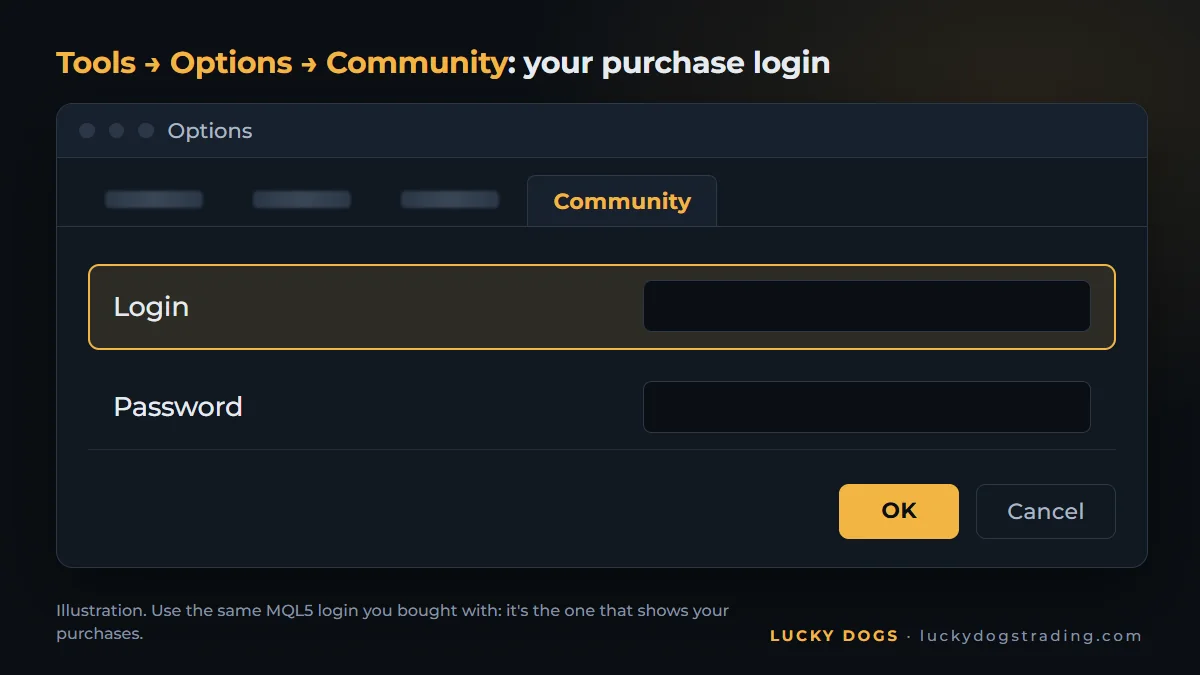
- Install it in MetaTrader 5. In Tools → Options → Community, log in with your MQL5 login. Then, in the Toolbox, Market tab, go to Purchased and click Install.
The login in step 5 is the detail that matters most: MT5 only shows the purchases of the MQL5 account it's logged in to. Bought with one login and signed in to MT5 with another? The purchase exists, it just doesn't show up there.
The full step-by-step, from the chart to Algo Trading, is in how to install an expert advisor (EA) in MT5.
Activations: what they are and how many you get
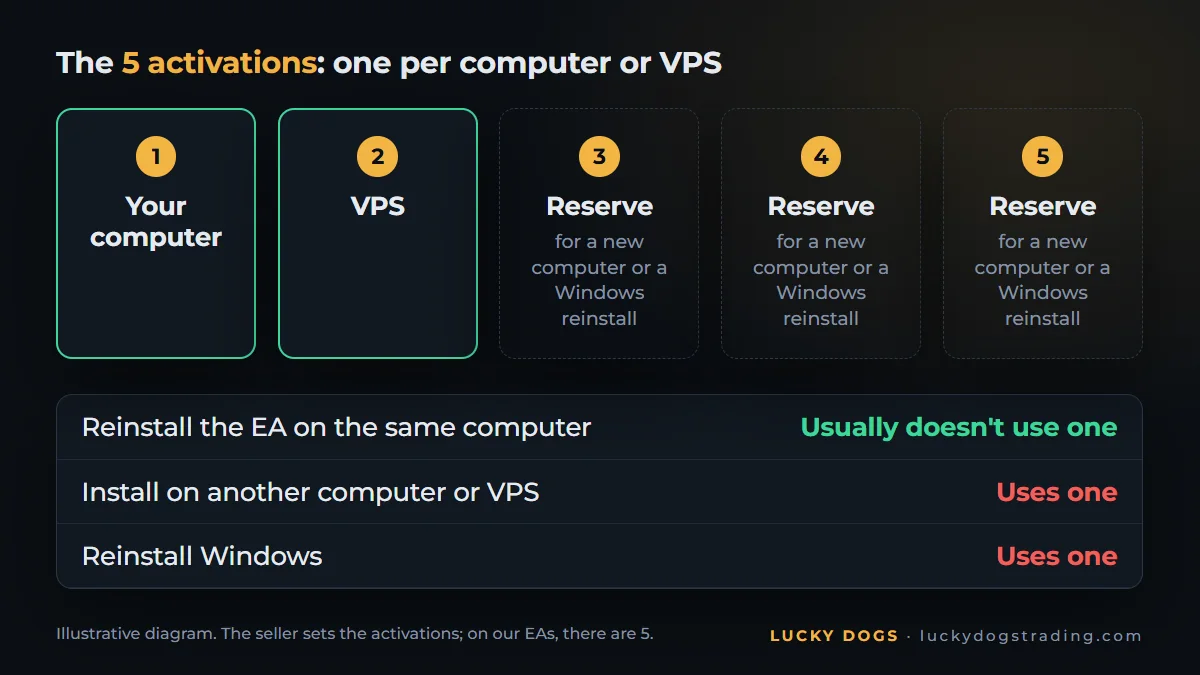
An activation is an install of the EA on a different computer or VPS. A VPS is a cloud computer that stays on 24 hours a day, where the EA runs without depending on your machine.
What uses one and what doesn't:
| Situation | Uses an activation? |
|---|---|
| Reinstalling the EA on the same computer | Usually not |
| Installing on another computer or VPS | Yes |
| Reinstalling Windows | Yes |
The seller decides how many activations each purchase comes with, and the Market requires at least 5. Our EAs come with 5.
How to plan your 5 activations
Think about activations before you install, not after:
- Your computer, to test and keep an eye on things.
- A VPS, to keep the EA running 24/7.
- Three in reserve, for a new computer, a new VPS or a Windows reinstall.
With one computer and one VPS, you have three activations saved for whatever changes come.
Licensing: what you actually buy
You buy a usage license, kept in your MQL5 account. The Market prepares each installed copy for the computer it runs on. That's why each new computer uses an activation, and that's what protects your purchase.
The most common purchase problems
| Problem | What to do |
|---|---|
| The EA you bought doesn't show under Purchased | Check that MT5 is logged in with the same MQL5 login in Tools → Options → Community |
| It shows under Purchased but not in the Navigator | Click Install and look under Expert Advisors → Market |
| You've run out of activations | Contact the seller through the MQL5 chat (on ours, support is there) |
| You reinstalled Windows and the EA is gone | It's a new activation: install it again from the Market tab |
Our EAs on the MQL5 Market
Our three EAs, Collie Gold, Pitbull Gold and Beagle Gold, are on the MQL5 Market and already tick every box in this guide:
- Free demo to run 2025 and 2026 in the Strategy Tester, with your broker's data.
- 1-month rental during the launch, to see the EA live on an account.
- 5 activations and all updates included.
- Support through the MQL5 chat.
And one number for each, in the test with real ticks, in 2025:
- Collie Gold: +586% on the Moderate profile.
- Pitbull Gold: +425% on the Balanced profile.
- Beagle Gold: +185% on the Moderate profile.
After you buy, the install is short. All three recognize gold under any name, detect the broker's time zone on their own and are set up with a single setting: the profile.
And the launch price goes up every 10 copies sold. Compare the three EAs side by side, run the demo of each one and pick yours.
Frequently asked questions
How many activations does an MQL5 Market EA have?
The seller decides, and the Market asks for at least 5. On ours, there are 5: one per computer or VPS.
Does reinstalling MT5 or Windows use an activation?
Reinstalling on the same computer usually doesn't. Reinstalling Windows or switching computers uses a new activation.
Can I use the same EA on my computer and on a VPS?
Yes, and each one uses an activation. With 5, you have three left to switch machines or reinstall Windows.
I bought it and the EA doesn't show up in MT5. What do I do?
Check that MT5 is logged in to the same MQL5 account you bought with, in Tools → Options → Community. Then, in the Market tab, go to Purchased and click Install. The EA shows up in the Navigator, under Expert Advisors → Market.
Does the MQL5 Market give refunds?
No. That's why the free demo and renting exist: you run the robot in your MetaTrader, see every trade and only buy what passed your test.
Can I test before I buy?
Yes, in two ways. The free demo runs in the Strategy Tester, at no cost, with your broker's history. Renting shows the robot live on an account. The full checklist is in how to test a trading robot before you buy.
Buying is the quick part. Choosing is what matters: see the three EAs side by side, run the demo of each one and buy the one that passed your test.