How to Test a Trading Robot Before You Buy: 5 Steps in MT5
By Fernando Funicelli · Founder of Lucky Dogs Trading Systems
To test a trading robot before you buy, you download the free demo, rerun the seller's test in your own MetaTrader 5 and then switch to your own conditions: your deposit, your broker and the most recent period. It is how you test an expert advisor without taking anyone's word for it, and it costs nothing.
The seller's page shows a chart climbing from left to right, a big percentage and a row of winning months. It may all be true. But every piece of it was chosen by the seller: the period, the deposit, the broker and the settings.
You have not seen anything of your own yet.
The usual path is to buy from the storefront. You pay, put the robot on your account and, weeks later, realize that the robot on the page and the robot on your account look nothing alike. Nobody had to lie for that to happen: the test on the page just wasn't yours.
The rule that fixes it fits in one sentence: buy the test you ran, not the one you were shown.
This is the buyer's roadmap, from the seller's page to the decision, in 5 steps. Along the way, two tables do the work for you: the test sheet and the decision table.
What a robot's free demo lets you do (and what it doesn't)
In MetaTrader 5, a trading robot is called an Expert Advisor, or EA. On the MQL5 Market, the robot store built into MetaTrader, paid robots come with a free demo. On the robot's page, click the demo button: MT5 opens and installs the demo.
It runs in the Strategy Tester, the platform's simulator, which replays your broker's price history and shows what the robot would have done, trade by trade. You choose the period, the deposit, the leverage and the profile.
The demo does not trade on an account, demo or live: it runs only in the tester. To see the robot live on an account before you buy, there is the rental. Our EAs can be rented for 1 month during the launch. Renting and buying, step by step, are in how to buy an EA on the MQL5 Market.
| Free demo | 1-month rental | |
|---|---|---|
| Where it runs | In your MT5's Strategy Tester | On an account at your broker, demo or live |
| What it shows | The past: every trade in the period you choose | The present: live execution, with the real spread and timing |
| What it costs | Nothing | The price on the robot's page |
| When to use it | In steps 1 to 4 | In step 5, after the test has passed |
A note on time: the first test downloads the tick history, every price change the broker recorded, and takes longer. The next ones are fast.
Step 1: read the seller's page like an auditor
Before you open MT5, build the test sheet: the recipe the seller used to reach the result on the page. It is what you will rebuild in step 2.
| What to look for | Why it matters |
|---|---|
| Period | One hand-picked year says little; the period needs to reach the most recent month |
| Modelling | "Every tick based on real ticks" uses the prices the broker recorded; the other modes imagine the price path inside each bar |
| Initial deposit | In a robot that sizes the lot from the balance, the deposit changes the size of every trade |
| Leverage | Sets how much margin each trade uses and whether the lot fits the account (what leverage changes) |
| Broker and symbol | Every broker has its own prices, spread and commission |
| Settings or profile | Storefronts sometimes show the most aggressive profile |
| Live account | The test shows the past; an account read straight from the broker shows execution |
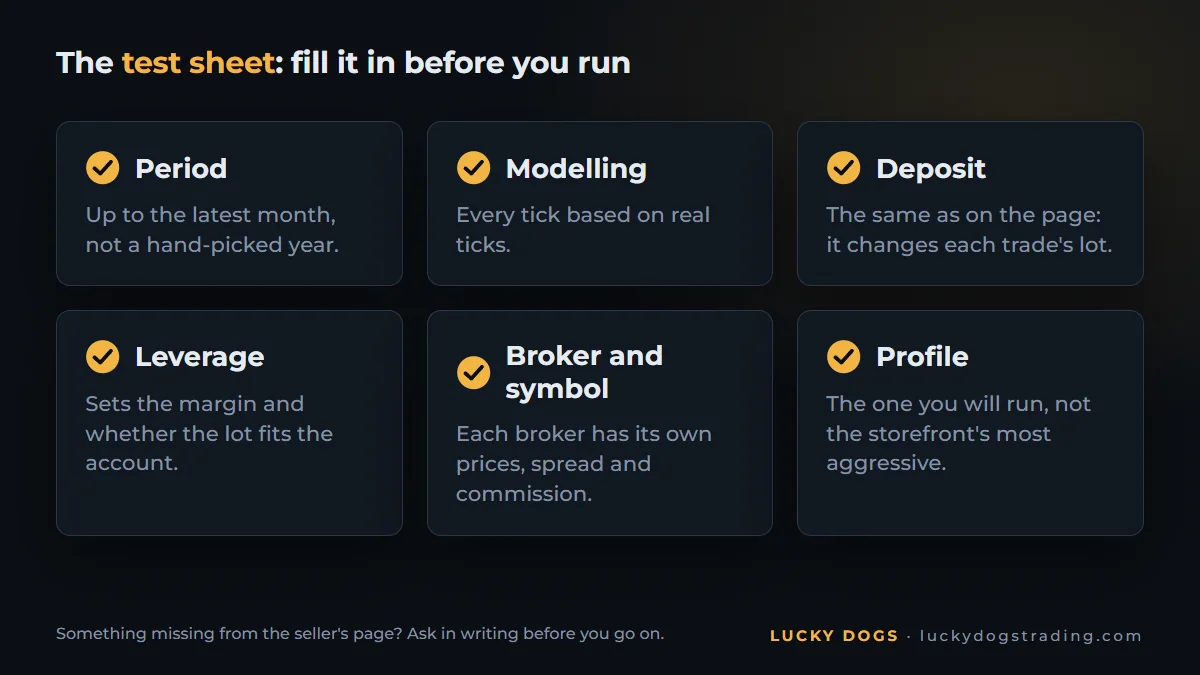
Something missing from the page? Ask the seller before you go on. A written answer is worth more than a chart, and anyone selling a serious robot knows this sheet by heart.
Step 2: rerun the seller's backtest in your own MT5
With the demo installed and the sheet in hand, you will test the expert advisor in MT5 the way the seller did. The setup fits in four lines:
- Open the Strategy Tester with Ctrl+R.
- Choose the robot and the symbol from the sheet.
- Set the period and the modelling to match the sheet.
- Set the same deposit and leverage and click Start.
If this is your first time in the tester, the 15-minute test, field by field shows every screen. The official Strategy Tester documentation explains every option.
To match it exactly, use data from the same broker as the sheet. The tester downloads the history of the broker your MT5 is connected to, and a demo account at that broker does the job.
This step has one point: your result has to land close to the result on the page. Close, not identical. If it does, the storefront test is real, and you can move on to the test that decides.
Why your test may come out different
- The broker's data. Each broker records its own ticks. At another broker, prices are not identical.
- The spread. It is the gap between the buy and the sell price, and every trade pays it. A wider spread eats part of the result. So does the commission, on some accounts.
- The symbol name. XAUUSD, GOLD, XAUUSD+: the asset is the same, but the contract may change. Check the symbol's Specification, in the right-click menu of Market Watch (Ctrl+M).
- The robot's version. An update changes behavior. Check that the page and your demo are the same version.
- The modelling. A test on open prices or 1-minute OHLC and another on real ticks do not give the same result, especially for a robot that trades fast.
A small difference is normal. A big one is a question for the seller, before any payment.
Step 3: switch to your own conditions
Step 2 proved the storefront is real. Step 3 shows the robot where it will actually work for you.
- The deposit you will really use. If you will start with half the sheet's deposit, test with half.
- Your broker. Your symbol, your spread, your commission. If gold has another name on your account, see how gold is named at your broker.
- The most recent period: 2025 and 2026. It is the market the robot will meet tomorrow. Older years show whether the rule holds up in different markets, but they do not decide the purchase.
- The profile you will run. Not the storefront's most aggressive one: the one you will leave running on Monday.
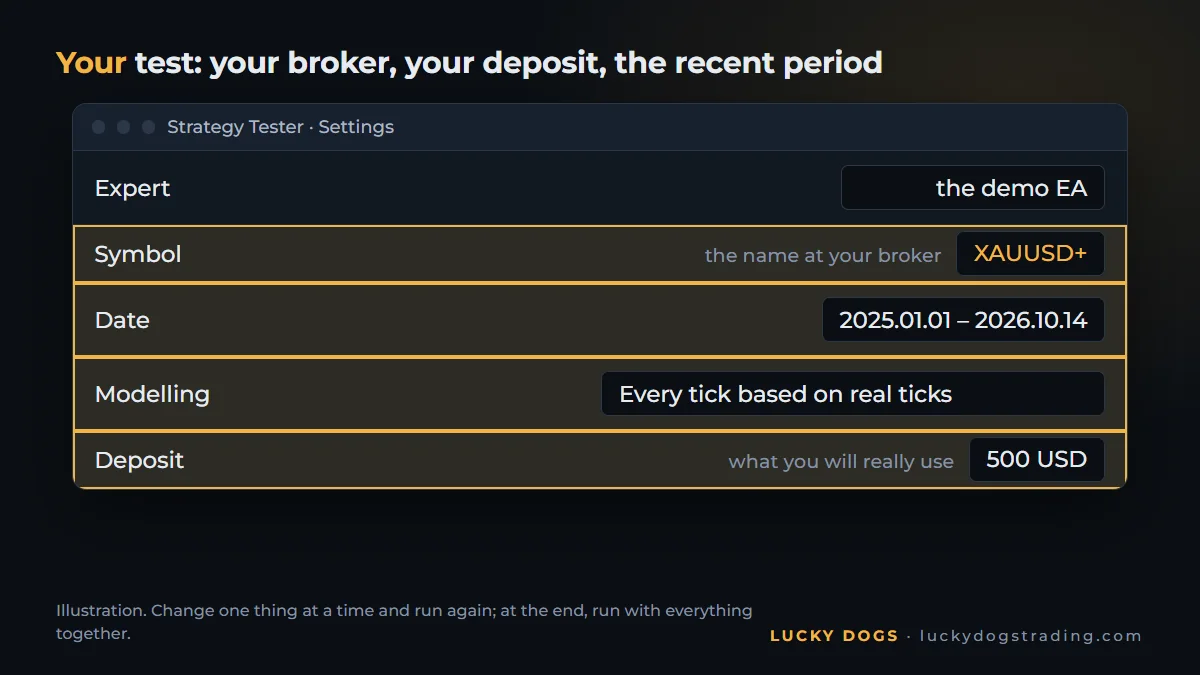
Change one thing at a time and run again: that way you know what moved the result. At the end, run with everything together. That is your test, and it is the one you buy.
Step 4: compare the page with your test
Put the two side by side. Five lines are enough to see whether the storefront and your account tell the same story.
| Seller's page × your test | What counts |
|---|---|
| Profit over the period | The same direction, even if yours is smaller |
| Biggest drop | Yours has to fit what you can watch without turning the robot off |
| Number of trades | Similar; far fewer trades means the robot is not finding its entries at your broker |
| Winning months | Most of them, in your test too |
| Worst month | A month you would get through without touching anything |
To read each number correctly, see the 5 numbers that separate a serious robot from a promise.
With the comparison done, the decision is almost automatic:
| Your test | What to do |
|---|---|
| Matches the page in your conditions | Go to step 5, or buy |
| Matches on the seller's sheet, gets worse in yours | Change the profile or the deposit and run again |
| Does not match even on the seller's sheet | Ask the seller before anything else |
Notice that no line says "buy because the page looks good". Every decision comes from a test you ran.
Step 5: run it on a demo account before real money
The Strategy Tester shows the past. A demo account shows the present: play money, real prices and the robot running day and night, at your broker.
To test the EA on a demo account, rent the robot for 1 month and turn it on, as in how to install an expert advisor (EA) in MT5. There are three switches: log in to the account with the master password, tick Allow Algo Trading in the EA window and turn the Algo Trading button at the top of MT5 green.
Here you are not measuring profit: you are checking execution. Four questions guide the month:
- Do orders come in at the hours the robot promises?
- Does the stop reach the broker's server together with the order?
- How much does the spread at news time weigh on each trade?
- Does the robot stay out of the moments it says it stays out of?
And keep MetaTrader running. If your computer shuts down at night, the robot stops following its trades. A VPS, a cloud computer that stays on 24 hours, solves that.
What the test does not show (and where to see it)
A good test with real ticks gets very close to reality. Three things are left out, and each one has a place where you can see it:
- Real execution. Slippage, the difference between the requested and the executed price, and the spread on major news. The test gets close; the account shows the rest.
- The terminal going down. In the test, the robot never drops. In real life, the power goes out and Windows restarts. That is what a VPS is for.
- Your discipline. The test does not turn the robot off in the worst month. You might. Knowing the worst month in advance, in step 4, is what steadies your hand when it comes.
That is why we publish accounts read straight from the broker, trade by trade, with nothing typed by hand. And every number on our site follows the 5 rules we use to publish every number.
Test our three before you choose
Everything this guide asks of a seller, we deliver. The test sheet for each EA is on each EA's page, and you rerun our test exactly as it was done: with real ticks, real spread and real commission.
| EA | Period | Deposit | Broker and symbol | Leverage | Default profile |
|---|---|---|---|---|---|
| Collie Gold | January 2021 to October 14, 2026 | 1,000 USD | Vantage, XAUUSD+ | 1:1000 | Moderate |
| Pitbull Gold | January 2021 to September 2026 | 10,000 USD | Vantage, XAUUSD+ | 1:500 | Balanced |
| Beagle Gold | January 2023 to October 2026 | 10,000 USD | Vantage, XAUUSD+ | 1:100 | Moderate |
One detail helps with step 2: the year-by-year table on each page restarts every year with the same deposit. To rerun a year, run only that year, with the sheet's deposit.
Start with one number from each, in the test with real ticks:
- Pitbull Gold and its test sheet: +478% in 2025 on the Balanced profile, and 21 of 21 months in profit in 2025 and 2026. Run 2025 with 10,000 USD and check the report month by month.
- Collie Gold: +586% in 2025 on the Moderate profile, in the test with 1,000 USD.
- Beagle Gold: +185% in 2025 on the Moderate profile, and 21 of 22 months in profit in 2025 and 2026.
Then do step 3 with all three. They recognize gold under any name and detect the broker's time zone on their own, and choosing the profile is the entire setup. The test at your broker runs with no other adjustment.
Run all three with the same deposit and the same period, and choose by your own test.
Frequently asked questions
Can I test an expert advisor online?
The test runs in your MetaTrader 5, on your computer or a VPS, not on a website. That is better: it uses the history of the broker you will trade with. The demo downloads from the robot's page on the MQL5 Market and opens in the Strategy Tester, for free.
Does the free demo have limits?
It runs only in the Strategy Tester: it does not open orders on an account, demo or live. Inside the tester, you choose the period, the deposit and the profile. To see the robot live on an account, use the 1-month rental.
How much history should I test?
The most recent first: 2025 and 2026, the market the robot will meet. Then the earlier years, to see whether the rule holds up in different markets. They show consistency, but they do not decide the purchase.
Why did my test come out different from the seller's page?
The usual causes are five: the broker's data, the spread and commission, the symbol's contract, the robot's version and the modelling. A small difference is normal. A big one, with the same sheet, is a question for the seller.
Do I have to pay to test?
No. The demo is free, and the Strategy Tester comes with MetaTrader 5. The rental is optional, for anyone who wants to see the robot live on an account before buying.
Can I test more than one robot at the same time?
You can test as many as you like, and the simplest way is one after another, in the same Strategy Tester. To compare, use the same deposit, the same period and the same modelling for all of them: that way the difference in the result comes from the robot, not from the test.
Buy the test you ran. Start with ours: download the demo of all three and compare them side by side, run the same test and choose by your result.